
User Manual.
Cinema scouting, location prep, and viewfinding for iPhone -- every surface in the app, explained.
Skopos is a director's viewfinder, light meter, sun tracker, and location-report builder rolled into a single iOS app. It pairs an accurate cinema-camera viewfinder -- every working body across ARRI, RED, Sony, Canon, Panavision, Blackmagic, Panasonic, Fujifilm, Nikon, and film -- with the location organization tools you actually need on a tech scout: photos, notes, contacts, sun studies, drive times, and PDF reports you can hand to a producer or DP.
Skopos's calculations are documented in detail in the companion Technical Methodology, which covers the math, sources, and assumptions behind sensor data, field of view, depth of field, exposure, and solar position. This manual focuses on how to use the app; the methodology answers "why should I trust the numbers."
§ 00Field guide
The whole viewfinder on one page. If you read nothing else, read this -- the rest of the manual expands on everything here.
↓ Download this as a printable Field Guide (PDF)
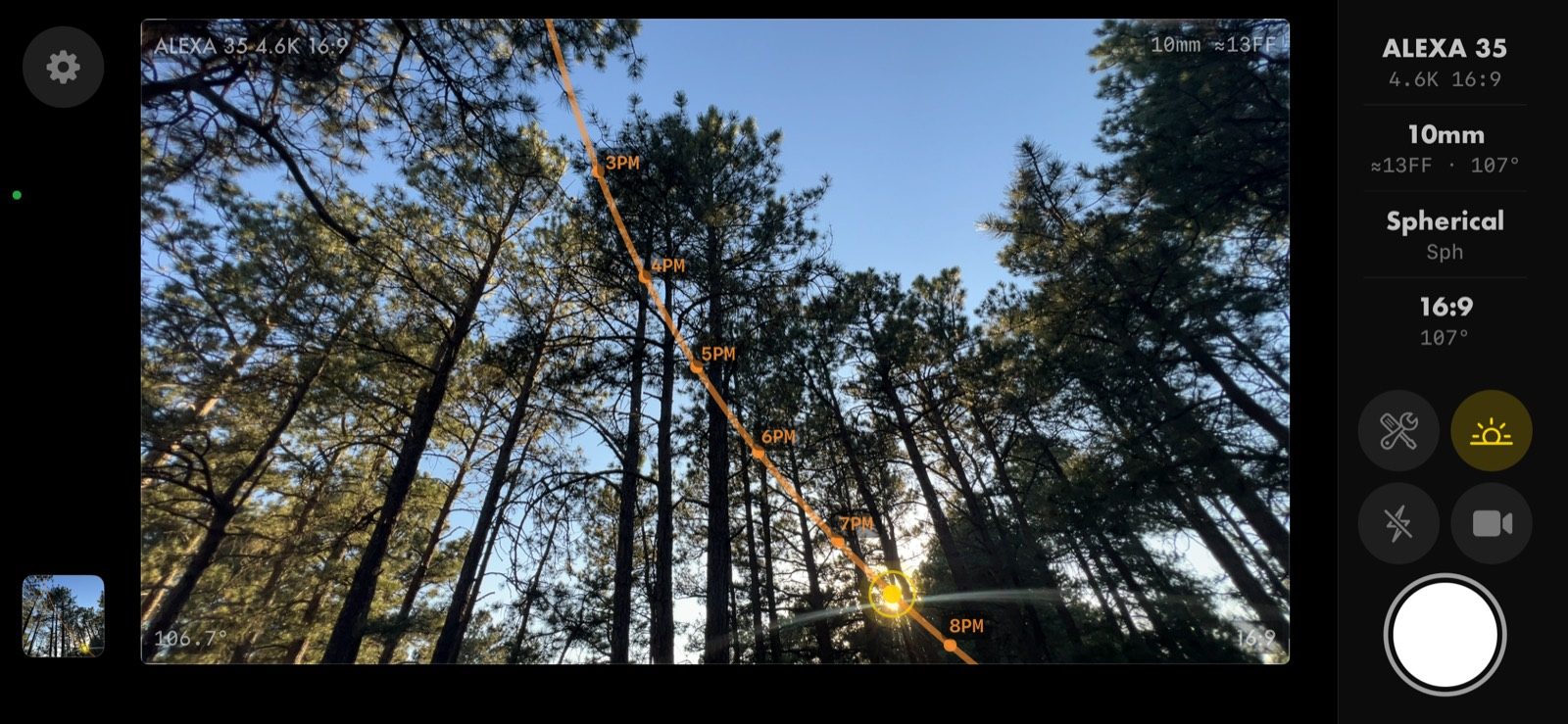
The rail (right edge, landscape)
Four data cells, top to bottom. Each shows the current value; tap to change it. New installs open locked to landscape; Settings → Display → Viewfinder Orientation switches between Auto, Portrait, and Landscape.
| Cell | Reads | Tap |
|---|---|---|
| Camera | Body and recording mode (ALEXA 35 · 4.6K 16:9) | Camera picker -- searchable card grid with starred favorites |
| Focal | Focal length, full-frame equivalent, horizontal FOV (10mm · ≈13FF · 107°) | Lens picker -- lens library, favorites, and your kits |
| Optics | Spherical or anamorphic, squeeze factor (Spherical · Sph) | Squeeze picker |
| Aspect | Matte and delivery FOV (16:9 · 107°) | Mattes & Guides sheet |
Buttons
The 2×2 grid sits below the cells; settings and gallery are on the left edge.
| Button | SF Symbol | Does |
|---|---|---|
| Tools |  | Opens the six-tab tool strip. Tints purple, orange, or green when a look or LUT is on the monitor, blue when white balance is held |
| Sun |  | Toggles the sun path overlay; yellow when on |
| Torch |  / /  | Torch on / off |
| Mode |  / /  | Switches between photo and video; icon shows the mode you will switch to |
| Shutter | -- (drawn ring) | Captures a photo, or starts and stops recording; shows resolution and fps in video mode. Either volume button (or Camera Control on iPhone 16) does the same |
| Settings |  | Opens settings (top-left corner) |
| Gallery |  | Opens the gallery; shows the last capture as a thumbnail (bottom-left corner) |
A gold  badge on any button or tab means it requires a subscription.
HUD readouts
Small chips on the monitor. Each can be switched off individually under Settings → Display, and the whole set can move from the image corners to a strip above the image (Position: Top edge).
| Position | Shows |
|---|---|
| Top left | Body and mode -- ALEXA 35 4.6K 16:9 |
| Top right | Lens -- 10mm ≈13FF, or lens series, focal, and mount modifier |
| Top center | Heading pill -- NW 312° (off by default; rides the REC pill while recording) |
| Bottom left | Delivery horizontal FOV -- 106.7° |
| Bottom right | Matte label, or No Matte, with the protect matte after it. Stacked above: LOG, LOOK or LUT, and the held white balance (5600K) |
| Bottom center | Warning pill -- DIGITAL (digital zoom) or 52% PHONE FOV (the phone can't reach this field of view) |
What gets written onto saved photos is set separately under Settings → Capture Metadata & Footers.
Gestures on the gate
- Tap -- focus at that point. With the Meter tool open, tap sets the spot meter instead; with the WB tool open, tap takes a grey-card reading.
- Drag up / down -- exposure bias (disabled while the Meter tool is open).
- Swipe left / right -- dismisses the open tool, then the tool strip, then any picker.
- Pinch -- zoom. With a lens kit active and Focal Hard Stops on, pinch snaps between the kit's real focals instead of zooming continuously.
Sun overlay
Toggled with the button. On the gate it draws:
- The day's solar arc -- solid where the sun is above the horizon, dashed below.
- Hour markers with labels at each on-the-hour point.
- The sun's current position as a ringed marker; an edge arrow points to it when it is out of frame. Dims at civil twilight and again at night.
- The moon, when enabled, as a smaller marker.
The Sun tool tab adds the controls:
| Control | SF Symbol | Does |
|---|---|---|
| Sun |  / /  | Sun marker on / off |
| Moon |  / /  | Moon marker on / off |
| Calendar |  | Simulates the sun path for another date and time |
| Calibrate |  | Compass calibration; the applied offset shows as  with an with an  to clear. Calibration requires live time -- a simulated date shows to clear. Calibration requires live time -- a simulated date shows  |
| Full screen |  | Expands the sky view to the full screen |
Tool strip
Opened with the button. Six tabs:
| Tab | SF Symbol | Panel |
|---|---|---|
| DOF |  | T-stop wheel with third-stop offsets, focus-distance slider, distance, near/far/total DOF, hyperfocal, minimum focus. Custom enters a distance by keypad; Measure ( ) reads distance with LiDAR ) reads distance with LiDAR |
| Meter |  | Light meter solving T-stop, ISO, or shutter against fps, ND, and shutter angle or speed; tap the image to spot meter |
| Sun | | Sun overlay controls (above) |
| WB |  | White balance meter: live scene Kelvin and tint, AUTO / HOLD, GREY CARD, SET presets (3200 · 4300 · 5600 · 6500), CUSTOM Kelvin. Preview only; recording stays flat |
| Look |  | Film Look picker (eight looks), Lift / Contrast / Saturation / Warmth / Tint, and the Monitor LUT (Log → Rec.709 or an imported .cube) |
| Rec |  | Resolution, fps, Apple Log, monitor LUT |
Gallery, locations, shot lists
The gallery has three tabs: Projects , Locations  , and All Captures .
- All Captures -- every photo and video in a grid, plus IMPORT from your Photos library. Selecting items shows an action bar: Share
 , Shot Lists
  , Location , Delete
  .
. - Any capture -- tap EDIT
 for Color Correction (with White Balance), Look, and Viewing LUT; DOF simulates lens-true depth of field on a still. Videos add Thumbnail Frame, Save Frame as Still, and Playback Framerate.
 - Locations -- captures grouped by scouted location. Captures without one land in Unassigned; a banner offers to auto-create locations from GPS clusters, or assign them manually. Locations can be merged, and each can export a Location Report PDF (
 ) with photos and sun data.
 - Projects -- each project has LOCATIONS, SCENES, and SHOT LISTS tabs; lists without a project sit in Unassigned Shot Lists.
- Shot lists -- a title, scene, project and location links, and ordered shots. Each shot has a type (WIDE, MED, CU, INSERT, ESTAB, OTS, POV, MASTER, TRACKING, DOLLY, CRANE, AERIAL, B-ROLL, 2-SHOT), a description, and a reference capture -- a still, or a chosen frame of a video. Lists export to PDF.
Settings, in one line each
Display (orientation, HUD readouts and position, units, 12/24-hour time, rail or legacy layout) · Capture Metadata & Footers (GPS, corner labels, info footer, matte marks on saved photos) · Tools (restore white balance at launch) · Sun Tracker (calibration reminders) · Production (your production card) · Lenses and Lens Kit (lens database, focal hard stops, custom focal kit) · Backup (iCloud snapshot, restore) · Custom LUTs (.cube import) · Diagnostics · Subscription (upgrade, Lifetime, restore purchases, redeem code).
§ 01Getting started
First launch
On first launch, Skopos walks you through four permissions -- Camera, Microphone, Location, and Photos -- and tells you why each one matters. You can grant them all up front or wait until each tool is opened; the app will re-request when needed, and everything can be changed later under iOS Settings → Skopos.
Camera access is the only one you can't really skip; the viewfinder is the heart of the app. Location is required for the sun tracker, sky map, geotagging, and report drive-time calculations. Skopos uses GPS only when the relevant tool is active and only for the data you'd expect -- nothing leaves the device unless you export it yourself.
New installs open with the viewfinder locked to landscape, the app's intended shooting orientation. The lock is applied once the launch Restore-from-iCloud prompt, if there is one, has been answered. Existing installs keep whatever they had and see a one-time notice pointing at Settings → Display → Viewfinder Orientation, where Auto, Portrait, and Landscape are all available.
If you've used Skopos before
Skopos keeps a snapshot of your projects, locations, shot lists, notes, and lens kits in your private iCloud Drive. When you reinstall or open the app on a new device with the same Apple ID, you'll see a Restore from iCloud sheet at launch.
Tap Restore to pull your existing data, or Start Fresh to begin a new library on this device. Restore only appears when there's a snapshot to offer and your local library is empty -- no risk of clobbering existing work.
Skopos stores everything locally first; iCloud is a durability backup, not a sync cloud. Photos and videos live in your iCloud Drive container; project data lives in a single JSON snapshot updated about five seconds after each meaningful save.
The five surfaces
Everything in Skopos lives on one of five surfaces. Knowing this map up front makes the rest of the manual easier to follow:
- The Viewfinder -- your main screen on launch. The live camera with overlays, controls, and tools.
- The Tool Strip -- opened from the wrench in the viewfinder. Six tools: DOF, Meter, Sun, WB, Look, and Rec.
- The Gallery -- a full-screen modal opened from the gallery thumbnail. Three tabs: Projects, Locations, All Captures -- plus the photo editor behind every capture.
- Project Detail -- opens when you tap a project. Locations, scenes, shot lists, and export tools for that production.
- Settings -- opened from the gear in the viewfinder. App-wide preferences, subscription, diagnostics.
§ 02The viewfinder
The viewfinder is what loads when the app opens. It's the live camera feed with a translucent gate that shows you exactly what a given cinema camera, lens, aspect ratio, and squeeze would actually frame.
Layout
Skopos is built for landscape, and that's how new installs open. In landscape, the control rail runs down the right edge with four data cells, top to bottom: camera body and mode, focal length (plus FF-equivalent and gate HFOV), optics (spherical or squeeze factor), and delivery aspect. Tap any cell to open its picker. T-stop and focus distance live in the DOF tool -- see § 03. Below the cells sits a 2×2 button grid plus the shutter:
- Tools -- the wrench opens the six-tab tool strip. It tints when something is shaping the monitor: purple for a film look, orange for a custom LUT, green for the Log conversion, blue for a held white balance.
- Sun -- toggles the sun path overlay on the gate; yellow when on.
- Torch -- flashlight on / off.
- Mode -- switches between photo and video; the icon shows the mode you'll switch to.
- Shutter -- large round button; captures a photo, or starts and stops recording in video mode. Either volume button fires it too, and so does Camera Control on iPhone 16 -- just like the system camera. The buttons go back to being volume buttons the moment you leave the viewfinder.
Settings (the gear) sits in the top-left corner and the gallery tile -- showing your last capture as a thumbnail -- in the bottom-left. Portrait keeps the same controls along the bottom. Settings → Display → Viewfinder Orientation locks the viewfinder to Landscape or Portrait, or lets it follow the phone (Auto); if you preferred the older bottom-bar arrangement in landscape, Settings → Display → Layout switches between Rail and Legacy.
The HUD
Small chips on the monitor carry the framing data: body and mode (top left), lens and focal (top right), delivery FOV (bottom left), and the matte (bottom right), with the protect matte after it when one is set. Above the matte chip, stage tags stack up whenever something is shaping the image: LOG when Apple Log is recording, LOOK (purple) for a film look, LUT (green for the Log conversion, orange for your own LUT), and the held white balance as a Kelvin value (5600K). A bottom-center warning pill reads DIGITAL when you're into digital zoom, or 52% PHONE FOV when the phone's optics can't reach the field of view you've dialed.
An optional heading pill (NW 312°) sits top-center -- off by default, and shown on the REC row while recording. Every readout has its own switch under Settings → Display, and Position moves the whole set from the image corners to a strip above the image (Top edge) so the frame stays clean. In that strip the FOV sits beside the matte it describes.
Gestures on the gate
- Tap -- focus at that point. With the Meter tool open, tap sets the spot meter instead; with the WB tool open, tap takes a grey-card reading.
- Drag up / down -- exposure bias (disabled while the Meter tool is open).
- Swipe left / right -- dismisses the open tool, then the tool strip, then any picker.
- Pinch -- zoom. With a lens kit active and Focal Hard Stops on, pinch snaps between the kit's cataloged focals instead of zooming continuously.
Pinch to zoom, pinch to switch lenses
Pinch the live preview to change focal length continuously. Skopos uses your phone's triple-camera array (when available) to switch between ultrawide, wide, and tele optics seamlessly as you pinch, then crops within the active sensor for in-between values. The focal readout updates in real time so you always know what cinema-equivalent length you're framing at.
When you switch cameras (say, from a Super 35 body to ARRI 65), the minimum focal length your iPhone can physically reach changes too. Skopos clamps the range to that floor automatically -- if a focal pill greys out, it's wider than what your phone optics can deliver for that sensor. The floor is per-device, measured from each iPhone's actual reported field of view rather than nominal lens specs.
Camera bodies
Tap the camera cell at the top of the rail to open the camera picker: a two-column grid of cards, one per body, each showing the manufacturer and sensor size. Manufacturer pills across the top narrow the grid -- ARRI, RED, Sony, Canon, Blackmagic, Panasonic, Fujifilm, Nikon, Film (35mm 4-perf / 3-perf / 2-perf, 65mm, 16mm, Super 16, Super 8, and historical formats), Other (Z CAM, Panavision, Kinefinity, Phantom, Leica, Sigma, DJI, Freefly, AJA, IMAX, Ikonoskop), and Custom for bodies you define yourself. A search field matches every word you type against manufacturer, body, and mode, so alexa 16:9 finds every 16:9 mode on every ALEXA.
Tap a card to switch to that body and expand its recording modes -- for a single body you'll often see Open Gate, 4K 16:9, 4.6K 3:2, Anamorphic Mode, ARRIRAW, etc. Tap a mode to switch; the gate updates immediately and the focal length re-solves to keep your field of view the same. Star any body-and-mode pair and it pins to a Favorites list at the top of the picker, in the order you saved it. Free-tier users always have access to the Super 35 preset in all three perf modes; other bodies show a lock badge and tapping them surfaces the paywall.
For the full database of bodies and modes -- including active recording dimensions and aspect ratios per mode -- see the Camera Database. Supported lens series and their focal lengths are listed in the Lens Database.
Mattes & guides
Tap the Aspect cell to open the Mattes & Guides sheet. Two slot pills at the top choose what you're setting: Primary, the matte the viewfinder frames to, or Protect, an optional second matte drawn as a gold outline over the primary so you can frame two deliverables at once. The protect matte is a live framing aid only -- captures and reports stay clean. Ratios are grouped as Landscape & Standard (Academy through Ultra Panavision 2.76:1) and Vertical & Square (9:16, 4:5, 1:1), plus a Custom section where you define your own mattes as a decimal or W:H (custom mattes are never gated). Selections preview live on the viewfinder; close the sheet with the ✕. The current sensor gate ratio shows at the bottom.
Framing Guides add Thirds, Golden Ratio, or Quadrant grids drawn inside the active matte, with separate toggles for a Center Mark, a Symmetry Line, Safe Areas, and the Level gauge -- a roll/tilt artificial horizon over the live preview. The horizon line snaps green when your roll is level, the center dot when your tilt is square. In landscape the sheet splits in two columns: ratios on the left, guides on the right.
Squeeze (anamorphic)
Tap the Optics cell to switch between Spherical and your preferred squeeze ratio: 1.33×, 1.5×, 1.8×, or 2×. The viewfinder de-squeezes the image in real time so you see the final framed result, not the squashed sensor capture. When a lens kit is active, the squeeze picker locks -- the kit owns the squeeze, since real anamorphic glass doesn't switch modes.
Focal length, lens kits & the lens library
The focal pills are your primary lensing control. In Generic mode they come from your custom lens kit (defaults: 18, 24, 35, 50, 75, 100, 135 mm, managed in Settings → Lens Kit) and the zoom range is continuous between them; pinch the preview to move through it with optical lens-switching baked in. Pills the phone can't reach for the current sensor grey out.
Tap the Focal cell to open the lens picker -- a library of over 2,270 real lenses across 460+ series, from Super 16 to 65mm and IMAX. Browse by MAKER or FORMAT, search by name, and star the series you reach for; starred series and your saved kits collect under the FAVORITES & KITS pill, pinned so it never scrolls away. A bar above the list keeps RETURN TO GENERIC and + NEW KIT one tap away.
Build a kit. Tap + NEW KIT, name it, then filter or search the library, open a series, and tap focal lengths to add them -- + ALL adds a whole series in one tap (and CLEAR empties it). Mixed makers are welcome. The tray at the bottom shows what's in the kit with its T-stop range, focal span, and coverage, and warns you about mixed coverage or mixed squeeze (a mixed-squeeze kit saves as one kit per squeeze, since the viewfinder holds one at a time). Tap SAVE. Building and browsing are free.
Use a kit. Open any kit and tap USE IN THE VIEWFINDER. The focal pills become exactly those lenses -- each carrying its real T-stop, close focus, and coverage -- and the viewfinder snaps between them when you pinch (Focal Hard Stops, on by default in Settings → Lenses; zooms in the kit stay continuous). The lens name follows through to the HUD, the footer on saved photos, and your PDF reports: a shot on the Cooke 135 reads "Cooke S4/i", not the kit's nickname. Fractional focals read true -- a 9.5mm shows 9.5, not 10. From the same sheet you can rename the kit, add glass, set a speedbooster, or delete it. Activating a kit requires Skopos Pro.
Drop lenses for the day. Long-press any focal pill in the viewfinder to open the active kit; tap a focal there to drop it from the bar without touching the saved kit, and RESTORE DROPPED brings everything back. The last kept focal can't be dropped.
OPTICS. A row in the lens picker adds a mount modifier -- a speedbooster (0.64×, 0.71×), an extender (1.4×, 1.7×, 2×), or a custom factor. The modifier shows in the HUD and footer, shifts the field of view, and is accounted for in the light meter. Modifiers, like kit activation, require Skopos Pro.
T-stop & depth of field
The T-stop control lives in the DOF tool and is a two-part dial: a full-stop wheel (T1.0 through T45) and a fractional offset (0, +⅓, +⅔). Together they cover every working stop.
DOF is computed live from focal length, T-stop, focus distance, sensor size, and circle of confusion. To see the numbers -- distance, near and far limits, total depth, hyperfocal -- open the tool strip and tap DOF. The math is documented in § 04 of the Technical Methodology.
The iPhone has a fixed physical aperture, so changing the T-stop in Skopos doesn't open or close anything optically -- your live preview won't get brighter or darker, and recorded video isn't affected. The T-stop value drives two things: the DOF math, and the light meter solve. That's it. To actually shape the exposure of what you're capturing, drag up or down on the preview for exposure bias, or open the Meter tool and tap the preview to spot-meter.
Focus distance & AR depth measure
Set focus distance two ways:
- Drag the DISTANCE slider, or tap Custom to type a value -- meters, or feet and inches in Imperial.
- Tap Measure to launch the AR depth tool. Aim the crosshair at your subject; Skopos uses LiDAR (or visual plane estimation on non-LiDAR phones) to read the distance. Tap USE to write that value back to the focus slider. Measure requires Skopos Pro; the DOF calculator itself is free.
The depth tool is fullscreen and uses ARKit's own camera session, separate from the main viewfinder. You won't see your gate while measuring -- that's intentional. Measure, tap USE, and you're back in the viewfinder with the distance set. Accuracy details and LiDAR limits are in § 08 of the Technical Methodology.
§ 03Tools
The tool strip, opened with the wrench, holds the six working tools that turn the viewfinder into a scouting kit -- DOF, Meter, Sun, WB, Look, and Rec. Tap a tab to open its panel; tap again to close. Only one tool is open at a time. In the rail layout, DOF, Meter, and Sun open as a side column or a bottom drawer depending on the shape of the gate; Look and Rec always open at the side.
DOF
Depth-of-field readout plus your exposure-math inputs. The panel holds the T-stop wheels and the focus-distance slider, and shows Distance, Total DOF, Near, Far, Hyperfocal, and (with a lens kit active) the lens's Min Focus, which turns orange when your focus distance is inside it. All values update live as you change any input. DOF is in the free tier.
Light Meter
A working incident-equivalent light meter built on the iPhone's exposure system. The panel has three columns -- T-STOP, ISO, and SHUTTER -- plus cells for FPS and ND and an Angle / Speed toggle.
Each column header carries a small a / padlock badge. Tap a header to make that column the AUTO target -- Skopos solves that value while you fix the other two. So if you want to see what ISO you'd need at T2.8, 1/50s, tap the ISO header; the T-stop and shutter wheels become locks, and the ISO column shows the solved value in yellow. The T-stop wheel here is the same one the DOF tool uses.
Tap Angle or Speed to switch shutter representation. Angle thinks like a film camera (180° at 24fps); Speed thinks in fractions (1/48 at 24fps). Both produce identical exposures. The FPS cell opens a frame-rate ladder from 23.976 to 120 with a Custom keypad for anything else; the ND cell runs from CLEAR to ND 2.4. The solve accounts for an active kit's wide-open stop and any speedbooster or extender -- if the lens can't get there, the panel says so (NEEDS T1.8 -- LENS OPENS AT T2).
With the Meter open, tap anywhere on the live preview to set a spot meter point -- Skopos locks exposure to that area, draws a SPOT reticle, and offers an AUTO button in the panel to release it.
Light Meter is a paid tool.
Sun Tracker
The most-loved tool in Skopos and the one most worth getting right. Tap the sun to open it.
Skopos relies on your iPhone's magnetometer to know which direction the camera is facing. Magnetometers drift constantly -- proximity to magnets (cases, mounts, car dashboards), elevators, large metal structures, and even other electronics can throw the heading off by tens of degrees. If the on-screen sun marker isn't lining up with where the actual sun is, or if Sky Map's sun arc looks visibly tilted, that's a calibration issue, not a Skopos bug. Skopos offers two ways to fix it: a tap-to-calibrate affordance (described below) and the standard iOS figure-8 wave. Worth doing the moment you arrive at any new location -- and with Calibration Reminders on (Settings → Sun Tracker), Skopos will periodically nudge you to check.
What you see
At the top of the panel: a Sky Map banner -- tap it to enter the full-screen AR sky map. Below that, RISE and SET times shown in big orange digits. Below those, ALT and AZ (sun altitude and azimuth) and a compass heading marker so you can sight where the sun is from your current position.
A timeline strip shows golden hour, blue hour, daylight, and night as a gradient bar. An indicator marker shows you where in the day the displayed time falls. The labels GOLDEN HOUR / BLUE HOUR / GOLDEN IN [time] / NIGHT cycle to whatever's most relevant right now.
LIVE vs simulated time
By default, the panel reads LIVE -- sun position is computed for right now. Tap the calendar to scrub to any future or past date and time; the readouts and the on-preview sun marker both move accordingly. This is how you preview a 6:42pm shoot two weeks from today. Tap GO LIVE to snap back to the present.
Sky Map
Tapping the Sky Map banner expands the tool to a full-screen AR view. The phone uses the magnetometer and motion sensors to overlay the sun's full arc across the sky, with sunrise and sunset positions plotted on the horizon and golden / blue hour bands shaded along the path. Pan the phone around to see where the sun will be at different times of day. The moon path overlays in a second color when you tap the moon toggle.
If your magnetometer needs calibration, you'll see a "Wave phone in figure-8 to calibrate" prompt. Do that motion until the prompt clears.
Sky Map captures save to your gallery as composite stills with the sun arc baked in. They're tagged as Sky Map captures and show up alongside your photos.
Tap-to-calibrate
When you can physically see the sun in your frame and the on-screen marker is in the wrong place, you don't have to wave the phone -- you can just tell Skopos where the sun actually is. From the Sun Tracker panel, tap the calibrate control. Skopos enters calibration mode: your next tap on the live viewfinder is interpreted as "the actual sun is at this pixel." Skopos snapshots the current pose and field of view, computes a heading offset, and applies it to every sun-arc projection. A small [CAL +X°] chip appears on the gate so you know the offset is active; tap its ✕ to clear it and return to raw ephemeris.
At night or when the sun is below the horizon, calibration switches to the moon -- you'll see a TAP THE MOON TO ALIGN prompt instead. Calibration requires live time; while you're simulating another date, the calibrate control is unavailable.
The offset is session-only and not persisted -- magnetic environments are location-specific, so a stale offset from your last scout would do more harm than good. Re-calibrate on arrival at each location. While an offset is active, it carries through everywhere: captures bake the corrected arc, and gallery playback, video overlays, and PDF exports all use the offset that was live at the moment of capture.
Sun Tracker is a paid tool.
White Balance
A white balance meter that reads the camera's own scene estimate. Open the WB tab and the big figure shows the live scene Kelvin (5450K) with the tint beside it -- magenta above zero, green below -- and a blue-to-orange scale with a needle for the reading. The status line reads SCENE · LIVE while it floats.
- AUTO / HOLD -- HOLD freezes auto white balance where it is (the status reads HELD, the figure turns white); AUTO releases it and clears everything below.
- GREY CARD -- fill the frame with a neutral target and tap it (or simply tap the image while the WB tool is open). Skopos adopts that reading as the scene reference and holds; the readout label switches from SCENE to CARD. The reference sticks until you tap AUTO, so you can card once and keep shooting.
- SET -- four preset chips (tungsten 3200, fluorescent 4300, daylight 5600, cloudy 6500) and a CUSTOM keypad for any value from 2500 to 10000 K. Engaging a SET holds white balance and applies a preview shift on the monitor -- the difference between the scene reading and the value you set -- so you see the scene as a camera balanced to that value would. The readout then shows both lines: SET in gold over SCENE (or CARD) in white. Tap a selected preset again to clear it. On iOS 26 the four presets take Apple's own illuminant values, so the numbers may differ slightly.
The HUD shows the held value as a blue Kelvin pill (5600K), and the WB tab and wrench tint blue while white balance is held or set. Both the scene reading and your SET are stamped on every capture and printed in the photo footer (WB 5450K); stills saved to your Photos library carry the SET shift exactly as monitored, while the in-app original stays clean and can be re-balanced later in the gallery (§ 05). Recorded video is never affected -- the shift is a preview, not a camera setting.
With Settings → Tools → Restore White Balance on (the default), Skopos brings back your last SET when the app opens: the viewfinder reads the scene for a few seconds (the status reads SETTLING → 5600K and the HUD pill glows yellow), holds, then applies it. It's an approximation -- the set value is an offset from the camera's own scene estimate, so a different scene or light gives a slightly different result. Any WB interaction during the settle cancels it; turn the setting off to always open in AUTO.
The meter is close, not exact -- use a dedicated meter when precision matters, and frame your scene before setting. White Balance is a paid tool.
Look
Everything that shapes the live monitor's color, in one panel.
- Film Look -- tap the chip to open a picker of eight built-in looks with real film character: Print, Daylight Neg, Tungsten Neg, Chrome, Bleach Bypass, B&W, B&W Hard, and Digital Cine. The monitor updates at once, the matte chip grows a purple
LOOKtag, and the look you shot with is saved with each capture -- the gallery shows it as As Shot and adds the grain and halation the live preview leaves out. NONE clears it. - Sliders -- Lift, Contrast, Saturation, Warmth, and Tint. In portrait and the rail layout they're a grid of gauge cells: tap one and a wide adjust strip appears with the slider and a Default pill; the sixth cell, RESET, returns all five to neutral. In the legacy landscape layout they stack as five track sliders.
- Monitor LUT -- see below.
The five sliders and your white balance SET bake into the still saved to your Photos library, so the library copy looks the way the monitor did; the in-app gallery keeps the clean image and re-applies the look on view, where you can change your mind. The film look is stored as metadata only. Recorded video is never affected by any of this.
Photos and video can also be graded after the fact -- with the same looks, a fuller color editor, white balance, custom LUTs, and depth-of-field simulation -- in the gallery editor; see § 05.
Monitor LUT
The Monitor LUT control is available from both the Look and Rec panels. On phones with Apple Log (iPhone 15 Pro and later) the built-in Apple Log → Rec.709 conversion is the default while Log is recording, so the monitor shows a normal image instead of flat log; on iPhone 17 Pro and later running iOS 26 it reads Apple Log 2 → Rec.709. Tap Import Custom… to load any .cube LUT from Files (or manage your library in Settings → Custom LUTs), pick Off -- Flat Log to review the raw log image, or Remove LUT… to delete one. LUTs apply to the live monitor only -- photos and video are captured in the device's active color space, untouched. The matte chip shows a green LUT tag for the Log conversion and an orange one for your own LUT.
A film look and a custom LUT share one slot: picking a look parks the LUT, and picking a LUT clears the look (the Log conversion runs underneath either). The circular reset arrow at the top of the Look panel returns the sliders to neutral and clears both the look and the LUT. Look is a paid tool.
Rec Format
Configure recording resolution, frame rate, and Apple Log. Available options depend on your phone:
- RES -- 1080p or 4K (4K depends on phone capability). This tier applies to video only; photos always save at full capture resolution.
- FPS -- 24, 25, 30, 60, 120, 240. Rates above 60 appear only when your phone supports them at the chosen resolution.
- LOG -- Apple Log (or Apple Log 2); only tappable on phones that support Log capture and only in video mode. The row says why when it isn't (iPhone 15 Pro+ / Video mode only). Log is sticky: switch to photo mode and it stands down, switch back and it re-arms.
- MON -- the same Monitor LUT control as the Look panel.
Rec Format is in the free tier.
§ 04Capture
Stills
Tap the shutter -- on screen, or either volume button -- to capture a still at full camera resolution. Skopos saves the image to your gallery with the full metadata stack: camera body, recording mode, sensor size, lens and focal length (with FF-equivalent), mount modifier, T-stop, focus distance, aspect ratio, squeeze, GPS (if enabled), heading, sun altitude/azimuth, white balance (scene and set), the live look, and timestamp.
After capture, the frame flashes and a Saved toast confirms the write. Tap the gallery tile to open your library and find it.
Video
Switch to video mode with the Mode button. The shutter becomes a record button -- first tap starts recording, second tap stops -- and shows the active resolution and frame rate. While recording, a REC pill with elapsed time and heading sits at the top of the frame. Recordings save with the same metadata stack as stills, plus the recording resolution and frame rate, and a motion sidecar that records heading and focal length frame by frame, so the compass needle and focal readout can play back live in the gallery.
Free-tier users see a paywall when they tap the shutter. The shutter is the most context-rich gate site in the app -- by the time you've framed something you want, you know whether it's worth unlocking.
Sky Map captures
Inside the full-screen Sky Map, there's a save button that captures the current AR view as a composite still. These appear in your gallery tagged "Sky Map" and are useful for showing producers exactly where the sun will be during a particular take.
Two copies of every photo
Every still is written twice. The in-app gallery keeps a clean, gate-cropped original with nothing drawn on it -- the look, white balance, matte, and sun arc are all re-applied from metadata when you view or export it, so they can be changed later. The copy saved to your iPhone Photos library is the finished frame: matte bars, the live grade and white balance as monitored, and by default a slate-style info footer appended below the image (your pixels are never covered).
The footer leads with the lens -- focal length, lens name, and mount modifier -- then the camera and format, then a mono data rail: field of view with the full-frame equivalent, the compass heading with a needle (or, when the sun tracker was on, the sun's azimuth and altitude), the aspect ratio, white balance, the capture time (labeled SIM when you were simulating another date), and -- with location on -- a 10-digit Open Location Code you can hand to anyone. Sun-tracker captures also carry the full compass rose in the frame.
Settings → Capture Metadata & Footers controls the library copy only: Location Metadata (GPS in the footer and the file's EXIF), Corner Labels on Photos (off by default -- burns the HUD corner text into the frame), Info Footer on Photos (on by default; turn it and Corner Labels off for a photo with no text at all), and Matte Marks -- Corners, Line, or None -- for how a matte is outlined over the darkened bars. Unmatted photos get no marks.
Sun arc & moon arc flags
If the Sun Tracker overlay is enabled at the moment of capture, Skopos marks the photo as a sun-aware capture (the "sun overlay" flag), and does the same separately for the moon. These flags travel with the photo through the gallery and into exports: photos shot with the overlays live default to including the sun or moon arc when they appear in a Location Report, and they become eligible for the dedicated Sun Studies pages in the export. You can override per-photo at export time -- see § 09 -- and choose whether to bake the arcs into any still or video you share from the gallery (§ 05).
§ 05Gallery
Tap the gallery thumbnail in the viewfinder to open the gallery. It's a fullscreen modal with three tabs along the top:
- Projects -- your productions, organized as cards.
- Locations -- every location you've scouted, across all projects.
- All Captures -- every photo and video, ungrouped.
Projects tab
Each project card shows the project's color dot, name, location count, capture count, and shot list count. Tap a card to drill into the project detail view. The dashed "Create New Project" button at the bottom opens the new-project sheet. Long-press a project for a context menu with Open and Delete Project.
Below the project cards, an Unassigned Shot Lists section collects lists that don't belong to any project yet, sortable by DATE or NAME (tap the active pill to flip the direction). Long-press a list to open it, assign it to a project, or move it to the trash.
Locations tab
Lists every location in your library. The filter chip at the top narrows by project -- All, a specific project, or No Project (locations that exist but haven't been assigned anywhere yet). Sort chips reorder the list A–Z, by created or edited date, or by proximity to where you're standing. Tap any row to open Location Detail.
If Skopos detects that your unassigned captures cluster geographically, a banner offers two paths: Auto-Create opens a Review Locations sheet that walks you through each cluster with a thumbnail strip before creating locations from them, and Review Manually opens a grid of all unassigned photos so you can select and assign them yourself.
All Captures tab
Every photo and video in a single grid. The ALL / LOCATION pill bar above the grid switches grouping:
- All -- flat grid of every capture.
- Location -- one scrollable filmstrip row per location, with the Unassigned row pinned at the top. Expand any row into a full grid.
The sort chip on the right opens a two-axis sort popover. In the flat grid, Sort by picks the key -- date captured, date added, date modified, or distance from me -- and Order flips direction (newest/oldest first, or nearest/farthest for distance). In Location grouping, the same chip orders the location rows: A–Z, recently captured, most photos, or nearest to me.
An IMPORT button in the gallery header pulls photos and videos in from your iOS photo library through the system picker (no photo-library permission needed). Capture dates, GPS, heading, camera make and model, focal length, and aperture come along from the file's EXIF, and everything the editor does -- looks, color, white balance, DOF -- works on imports too. Live Photos import as stills. An Exports row opens a browser of every location report PDF you've generated.
Intent pills
At the bottom of All Captures (when you're not already in select mode) you'll see two pills:
- Assign to Location -- outlined pill. Tap, select photos, then continue to pick a location.
- Create Shot List -- filled gold pill. Tap, select photos in tap order, then continue into the shot list editor. The order you tap captures becomes the shot order in the list.
These shortcut the older "select-mode → choose action" flow into a single tap-to-start path.
Select mode
Tap SELECT in the top-right of any tab to enter select mode. In All Captures, the action bar offers SHARE (which opens the export options below, with a two-step flow for mixed stills and videos), SHOT LISTS, LOCATION, and DELETE; in the Locations tab it offers Merge and Delete; in Projects, Delete. A live count of your selection shows in the sort row. Long-press any capture in the grid for Delete, Share, and Assign to / Remove from Location.
Viewing a capture
Tap any capture to open it full-screen. Pinch to zoom (with momentum on the pan), drag to reframe, double-tap to reset, and tap once to hide the chrome -- it also fades on its own after a few seconds of stillness. The metadata bar beneath the image reads the camera and mode, the capture date and time, a compass needle with the heading, the assigned location (or an Assign location pill), the lens, focal length and field of view, a matte pill, and for video the resolution and frame rate. During video playback the needle turns and the focal readout changes as the clip plays, from the motion recorded at capture. The matte pill mirrors the viewfinder's full roster, so a capture can be re-viewed through any deliverable frame; the original reads AS SHOT.
The toolbar above holds EDIT, DOF, SUN (when the capture has sun data), COPY, EXPORT, and delete. A star in the image's corner marks the photo as a hero for its location. The SUN panel shows rise, set, and golden-hour times, altitude and azimuth, toggles for the sun and moon arcs, a calendar for simulating another date, and a scrubber that slides the arc across ±6 hours; any simulation is labeled SIM on the image, with a warning when the heading accuracy at capture was poor.
Editing a capture
Tap EDIT to open the editor -- a vertical rail beside the photo in landscape, a panel below it in portrait. The hub lists the tools with their current value; pick one, then dial it in on the wide adjust strip at the bottom. Every slider readout can be tapped to type an exact value on a keypad. All edits are non-destructive: Skopos keeps the clean original, re-applies your edits on view, and carries them into thumbnails, shares, shot lists, and PDF reports. The header offers As Shot (return to exactly how it was captured, including any live grade or white balance that was active at the shutter) or Undo for the last change, plus a rotate button. Tap and hold the eye to compare against the original; tap it to latch the comparison.
- Color Correction -- eight gauges: Lift, Contrast, Highlights, Shadows, Midtones, Saturation, Warmth, and Tint. Tap a cell to send it to the adjust strip, or drag inside the cell to scrub it in place; Default resets one parameter and Reset All clears the lot.
- White Balance -- a row under the color grid opens the WB box. SET shows the balance the photo is rendered at; SCENE shows what the camera measured (tap it to adopt it). Scrub the Kelvin scale in 50 K steps from 2500 to 10000, tap a preset (tungsten, fluorescent, daylight, cloudy), type a CUSTOM value, and trim WB TINT from −150 to +150. Default returns to the balance the photo was captured with. Imported photos with no scene reading assume 5600 K until you set one.
- Look -- a browser of the eight built-in film looks, each previewed on your photo: Print, Daylight Neg, Tungsten Neg, Chrome, Bleach Bypass, B&W, B&W Hard, and Digital Cine. Each is a full character -- color response, halation, and grain -- with a STRENGTH slider to dial it from a whisper to fully developed. The look you shot with is preselected.
- Viewing LUT -- Import .cube adds a LUT to the library (shared with the viewfinder and Settings → Custom LUTs), newest first, and applies it. The applied LUT is saved with the photo. A photo holds one creative transform at a time: importing or applying a LUT clears the film look, and choosing a film look replaces the LUT. The LUT that was on the monitor at capture is tagged CAPTURE.
DOF lives on the toolbar rather than in the hub. It simulates lens-true depth of field on a capture: Skopos estimates per-pixel scene depth with its bundled on-device model, then renders optically modeled blur from your focus and T-stop. Tap the image to set focus, pull aperture on the T-STOP strip (it snaps to third stops), and read FOCUS, SHARP (near to far), and HYPERFOCAL beneath. Tap the focus distance to correct it by hand if you know the real number -- the whole depth map rescales. Anamorphic captures render oval bokeh from their squeeze; INT / EXT chips pick the scene model. People in the frame are protected from the blur automatically. The depth map is an estimate from a single image, not a measurement -- built for previewing the feel of a lens, not for blocking-accurate distances -- and it runs on any supported iPhone, no LiDAR required. Distances are prefixed ≈ for that reason.
Video edits work the same way: color, white balance, film look, and viewing LUT all apply to video (graded live in the player and rendered into exports). Videos add three rows to the hub: Thumbnail Frame picks the frame that represents the clip in grids; Save Frame as Still writes the current frame as a real photo that lands right next to the clip in your captures; and Playback Framerate retimes a clip shot at 60 or 120 fps to 24, 25, or 30 so you can preview it the way it'll cut, with audio slowed and pitch-corrected. The setting sticks to the clip and carries through to export; As Shot restores the native rate. DOF on a video first offers to create a photo from its thumbnail frame. Videos stored in iCloud show a download state on their tile and fetch on demand; tap the notice to retry.
Clips shot in Apple Log carry their Apple Log → Rec.709 conversion (or Apple Log 2) as an ordinary entry at the top of the Viewing LUT library, ticked automatically. Switch to None to review and share the flat log image, or view the clip through one of your own .cube LUTs instead. Film looks grade on top of the conversion, not the raw log image, so a Log clip wearing a look renders the way it should in playback, thumbnails, and reports.
Exporting & sharing a capture
Tap EXPORT on a capture, or SHARE from select mode, and an Export Options sheet asks what gets baked into the file: Camera Info Bar (the slate-style footer beneath the frame), Sun Arc and Moon Arc (with the compass rose), Matte with a style -- Shade (translucent bars), Solid (black bars), or Crop (cut to the delivery frame) -- Graded Look, and DOF Simulation for a still. Stills export at up to 6K. Videos add a Resolution choice, Original or 1080p, and a caution line that tells you whether your choices will re-encode the clip or share it instantly as-is; a progress sheet with Cancel covers the encode.
Bulk sharing a mixed selection runs in two steps -- STILLS · 1 OF 2, then VIDEOS · 2 OF 2 -- with independent settings for each, and warns you how much footage will re-encode before it starts. Export sits in the top-right of the sheet; the iOS share sheet follows.
§ 06Projects
A project is your container for a production. It holds locations, scenes, shot lists, and exports, and it carries metadata that gets used elsewhere -- drive times in location reports, for instance, are computed from the project's Home Base.
Creating a project
From the Projects tab, tap Create New Project. The new-project sheet asks for:
- Name -- required.
- Color -- used to tag the project across the app.
- Notes -- optional; visible on the project card and inside the project.
- Home Base address -- optional; if set, every location report inside the project includes a drive time from this address to the location.
Creating projects requires a subscription. Existing projects from before a subscription lapse stay readable and editable -- the gate is on creating new ones.
Project detail
Tapping a project opens a detail view with three tabs: LOCATIONS, SCENES, and SHOT LISTS (in landscape they run down a sidebar). Above the tabs sits a header with the project's name (tap the pencil to edit), notes, counts, and two chips: PRODUCTION CONTACTS -- up to three people who flow onto every location report in the project, with an Add myself shortcut from your production card -- and SET HOME BASE, which shows the address once set (and warns when it has no coordinates, since Drive Time needs them). On the LOCATIONS tab the nav bar offers Export for a batch export of the whole project; the other tabs offer Select.
Locations tab
Lists every location attached to this project. Two action buttons sit at the top:
- New Location -- creates a fresh location inside this project.
- Add Existing -- pulls in locations you already created elsewhere (or in a different project).
Tap a location row to open Location Detail; Back returns you here. Long-press for a context menu with Open and Delete Location. Once any scene has a location, a BY SCENE toggle regroups the list under scene headings, with a trailing No Scene group for the rest. At the foot of the tab, an Exports card (with a count) opens every report and batch export generated for this project -- tap a row to preview or re-share the PDF, delete from the row or its context menu.
Scenes tab
Lay out the script. Type a number or a range into the ADD SCENES field -- 1-36, 12A, 12B, 40-44, 51 -- and tap Next to get one card per scene where you can add a heading (INT. KITCHEN -- NIGHT), a description, and locations; Use these locations for all copies one card's picks across the batch. Numbers that already exist are skipped. Filter pills show All, Placed, or Unplaced scenes; every row shows its number, heading, location chips (or NEEDS LOCATION), and a shot count.
Tap a scene for its detail page: LOCATIONS with an ADD action, and SHOT LISTS with NEW (creates a list already scoped to this scene and its locations) and Add Existing List. A list covers one scene -- picking a list that's on another scene moves it here. Edit changes the number, heading, description, and locations, or deletes the scene (shots and lists tagged with it lose the tag; nothing else is deleted). In select mode you can assign a location to many scenes at once, or delete them.
Shot Lists tab
Every shot list in the project, viewable three ways via the grouping control:
- By Location -- the default. Lists pinned to a location appear under that location; multi-location lists go under their first location; roaming lists go under a trailing ROAMING group. This matches how scripts and call sheets are usually organized.
- By Scene -- same logic against scene assignments.
- All -- flat, sorted by most recently updated. Useful when you're picking up where you left off.
Each card shows the list name, photo strip preview, and shot and scene counts. Tap a card to open the shot list editor; New is your primary creation entry point. Select lets you export several lists at once -- as one combined PDF with page breaks between lists, or separate PDFs in a ZIP -- or move them to the trash. A Recently Deleted row appears whenever the trash has something in it.
§ 07Locations
Locations are the soul of a scout. Each one represents a real-world place you've considered, and it accumulates everything you've learned about it: photos, contacts, sun studies, addresses, drive times, notes.
Creating locations
Three paths get you to a new location:
- From the Locations tab in the gallery -- tap the plus button.
- Inside a project -- tap New Location in the Locations tab.
- Implicitly -- assign captures to "Create New Location" from the All Captures tab. Skopos uses the captures' GPS to pre-fill the pin.
Location detail
Opens when you tap any location row. The header carries the location's name, address, tags, counts, and project chips, then three buttons: Location Report (the big gold one), Add to Project, and Share, which sends a text summary of the location with its hero photos as JPEGs and a contacts card. If the location has rooms, a row of tabs -- All, each room, and + Room -- filters what's below. Then, in order:
- HERO PHOTOS -- up to four photos that lead the location and become page one of its report, in the order shown. Until you pick your own, Skopos chooses them automatically (marked AUTO) by scoring your captures on-device for composition and variety. Tap the header to choose or reorder; long-press any capture for Set as Hero.
- CAPTURES -- every photo and video assigned here, collapsed to a preview strip until you expand it. Add in the toolbar pulls in captures from elsewhere in your library (moving them here if they were filed somewhere else); Edit on the section header lets you unassign or move captures out. Tap a thumbnail to open it full-size.
- SHOT LISTS -- every list scouted at this spot, with thumbnails. When there's more than one, sort pills group them by RECENT, SCENE, or PROJECT (the project you came in from pins to the top; orphan lists sit under No project). New creates a list already pinned here; Select exports several at once.
- EXPORTS -- the Location Report PDFs already generated for this location, with shoot date, size, and generation date. Tap to re-open; long-press to delete.
Contacts, logistics notes, and the prep checklist are entered on the Location Report itself (§ 09), which remembers them.
Editing a location
Tap Edit in the toolbar. The edit sheet covers:
- Location name and notes -- free text.
- Address -- typed directly; the address labels the location and its reports without moving the GPS pin, which has its own field.
- Tags -- color-coded chips for filtering.
- Projects -- assign to or remove from one or more projects; the first is primary. There's also a quick Add to Project button in the header if you don't need the full editor.
Sub-locations
A sub-location is a room inside a location -- a specific room inside a house, a particular floor inside an office building, a courtyard area inside a larger compound. Rooms have their own captures, shot lists, and notes, but they roll up to the parent for project counts, exports, and travel logistics.
Create one with + Room on the parent's detail page. Rooms appear as tabs across the top of the parent, and the parent's totals include everything in its rooms -- so a house with three rooms shows the house's own captures plus all room captures in its total.
When you generate a Location Report, the parent location's report includes its own content; rooms get their own reports, which is usually what you want for production handoffs (the room walk-through is a different document than the building overview). You can also opt to export the parent and all children as a combined PDF in Batch Export -- see § 10.
Merging locations
If you've ended up with duplicate locations (same place, different scout days), select them in the Locations tab and tap Merge in the action bar. Skopos suggests a primary -- the one whose name, address, and pin survive -- and folds notes and contacts from the others into it. Captures from the others move to the primary.
After a merge, an Undo toast appears for ten seconds. Tap UNDO to restore the original locations exactly as they were. After ten seconds the merge becomes permanent.
§ 08Shot lists
A shot list is an ordered set of shots, optionally attached to a project and pinned to a location or scene. Lists without a project live in the Unassigned Shot Lists section of the Projects tab until you assign them. Each shot can carry a reference capture (a still, or a chosen frame of a video), a shot type, a description, notes, a priority, and a completion flag.
Creating shot lists
A list no longer needs a project before it's useful. Start one from wherever you are:
- From the All Captures tab -- tap Create Shot List, select captures in the order you want them shot, then tap Continue. You land directly in the editor with the list seeded in that order. The SHOT LISTS action in select mode does the same.
- From inside a project -- tap New in the Shot Lists tab to start with an empty list.
- From a location page -- tap New in its SHOT LISTS section; the list is pinned to that location from the start.
- From a scene -- tap NEW on the scene's detail page; the list is scoped to the scene and its locations.
Either way, everything -- name, project, location, scene -- is set from inside the editor; nothing is locked in at creation.
The shot list editor
Opens when you tap a list. The top block holds the title and three rows: SCENE (pick from the project's scenes, or type a free-text number on an unassigned list), PROJECT (or None -- Draft), and LOCATION (None -- Roaming, one, or several). When a list has no location but its captures do, a sparkles row offers Use <location> -- one tap and it's set.
Each shot is a card: the reference capture on top, then an order number, the shot-type pill, and an inline description. Tap the pill to change the type -- WIDE, MED, CU, INSERT, ESTAB, OTS, POV, MASTER, TRACKING, DOLLY, CRANE, AERIAL, B-ROLL, or 2-SHOT. Shots created from captures arrive with a CU / MED / WIDE guess worked out on-device from the framing; it only ever fills the untouched default, so anything you set by hand stays yours. Long-press a card for the full menu:
- Edit Shot -- description, notes, priority (high, medium, low), and scene tags.
- Attach Capture / Change Capture -- pick the reference from your captures.
- Change Frame -- for a video reference, scrub to the frame this shot should show. It's stored on the shot, so several shots can cite one clip at different frames, and the clip's own gallery thumbnail is untouched.
- Adjust Look -- opens the gallery editor on the reference capture (color, white balance, look, LUT). The edit follows the photo everywhere it appears.
- Show Sun Path -- per-shot toggle for whether the sun arc renders on this shot in exports.
- Duplicate Shot -- copies the shot, frame and all, right after the original.
- Remove from List.
Add Shot offers From Captures (batch-create shots from any captures in your gallery) or a Text-Only Shot. To reorder, tap Reorder in the bottom bar and drag rows by their handles; the order in the list becomes the order in the exported PDF, and Export PDF sits right next to Reorder. The … menu renames the list, edits its notes, moves it to the trash, and sets how its photos render -- Graded, As Shot, or Clean. That choice is stored on the list, so the cards and every PDF of that list agree.
Shot list PDFs
Each shot prints as a block with its reference image at true aspect ratio and print resolution, a checkbox for the crew to tick on paper, the type and priority, the description and notes, and a metadata rail in the same language as the photo footer: camera and format, then the focal and lens name (and squeeze), then field of view with the full-frame equivalent, aspect ratio, white balance, heading with a needle, and the plus code. Shots are numbered from 01 within each list and grouped under scene subheaders; a block never splits across a page break. Exporting several lists at once gives you one combined PDF or a ZIP of separate files.
Trash and recovery
Deleting a shot list shows an Undo toast, then moves the list to a trash for thirty days. When the trash has anything in it, a Recently Deleted row appears at the top of the project's Shot Lists tab -- view and restore deleted lists there, or empty the trash permanently. After thirty days a soft-deleted list is purged automatically on the next launch.
§ 09Location reports
A Location Report is the deliverable you hand to a producer, DP, gaffer, or first AD. Skopos builds the report from everything you've already entered for a location and lets you fine-tune before exporting to PDF.
Opening the report
From a location detail view, tap the Location Report button. The report opens with auto-populated content; the AUTO badge on each section indicates one that filled itself in from your data, and every auto-filled slot can be hand-edited (it then reads AUTO · EDITED).
Sections
The report form runs, top to bottom: Shoot Date, Location, Production Notes, Prep Checklist, Contacts, Sun & Light, Scouted Photos, Shot List, Nearby Facilities, Transport & Nearby, Weather & Travel, and Film Resources. The export builder groups the same content into toggles you can switch on or off before generating the PDF:
- Location & Contacts -- name, address, GPS, tags, fee, owner/manager/POC contacts (imported from iPhone Contacts or added manually), plus the project's production contacts.
- Sun & Light -- golden hour, blue hour, sunrise/sunset for the shoot date, plus a daylight timeline strip showing how the day breaks down. AUTO.
- Production Logistics -- parking, power, sound, cell signal, restrooms, crew access, and free-form notes. Manual.
- Emergency & Local -- hospitals, sheriff, fire stations, urgent care, plus transport and nearby services, found through MapKit with local-language searches abroad. The emergency card prints the correct dispatch number for the country you're scouting in (911, 112, 999, and so on) -- and says so plainly when a country isn't on file, rather than guessing. AUTO.
- Weather -- live forecast inside the WeatherKit horizon; historical climate normals otherwise. AUTO.
- Drive Time -- travel from project Home Base to the location. AUTO; disabled when no Home Base is set on the project.
- Film Resources -- the film commission, incentives, permit contacts, and permit notes for the location's region: 161 offices across 20 countries, from the US states to France, the UK, Italy, Spain, Germany, Switzerland, Belgium, the Netherlands, Austria, Ireland, Sweden, Latvia, Mexico, Canada, Australia, New Zealand, India, Pakistan, and Qatar. AUTO.
- Prep Checklist -- customizable list of pre-production items. Manual.
- Shot List -- full shot breakdown with thumbnails. AUTO. Lists at this location are shown with a thumbnail strip each and grouped by project; when there is more than one, a Choose lists picker in the builder lets you include only what's relevant for this deliverable. The PDF prints only the lists you chose, numbered from 01 per list.
- Hero Photos -- the page-one lineup, up to four photos. Curated from the HERO PHOTOS strip in Location Detail, adjustable in the builder's collapsible HERO PHOTOS section.
- Photos -- every capture assigned to the location, rendered as a gallery section. Collapsible in the builder -- see below.
- Sun Studies -- dedicated pages for photos captured with the sun overlay live or via Sky Map. Collapsible. The section only appears when at least one eligible photo is present -- sun studies have nothing to render otherwise.
Shoot date
Right under the header, the SHOOT DATE picker drives every time-sensitive section -- sun calculations, weather forecasts, golden hour. Default is one week out; change it to whatever date the location is actually being scouted for, and the AUTO sections recompute.
Project chip -- or a generic report
The Project row shows a chip for each project the location belongs to; the selected one decides the project name on the cover, the home-base drive time, the production contacts, and which shot lists are included. Tap the active chip again to clear it and build a generic report: no project tag, every shot list at this location grouped under its project, and no drive time. Handy when one location serves several productions, or when you're handing the scout to someone outside any of them.
Exporting & sharing
Tap Export PDF at the bottom of the report to open the export builder with the section list above, plus the collapsible photo sections. Generate PDF Report saves the file and opens the iOS share sheet. Next to it, Share Report sends a plain-text version of the report -- location, contacts, notes, sun times, facilities, film resources, shot lists -- along with the hero photos as JPEGs and a .vcf contacts card, handy for dropping the essentials into Messages or an email without a PDF attachment. PDF generation requires Skopos Pro; the on-screen report and the text share do not.
Photos & Sun Studies -- collapsible sections
Photos and Sun Studies each have their own collapsible header with a count of selected vs total. Tap the header to expand and see the full grid. Inside each:
- ALL / NONE pills -- select every photo or clear the selection in one tap. Default is all on.
- Per-photo tap -- include or exclude individual photos.
- Per-photo long-press -- opens a Customize Photo sheet with a live preview: Frame Guide (letterbox to the delivery aspect), Sun Path Overlay, Moon Path Overlay, Compass Rose, Bypass Color Filter, and for a video shot, Pick Frame. Reset to Defaults puts it back.
- Edits carry through -- a photo's gallery edits (color grade, white balance, film look, viewing LUT, and DOF simulation) render into the PDF exactly as they appear in the gallery, unless bypassed per-photo or via the bulk Look chip. Exported photos carry matte bars but no corner brackets.
- BULK chips (Photos section) -- Sun, Moon, and Look toggles plus Reset -- flip a setting across every selected photo at once. Useful for night shoots (sun off, moon on across the board) or for batch-resetting if you've been experimenting.
- Preserve capture sequence (Photos section) -- off by default -- Skopos packs photos by orientation (landscapes first, then portraits) for consistent visual rhythm. Toggle on to keep strict capture-time order, which preserves the walk-through narrative when that matters more than uniformity.
Sun arc in PDF photos
Photos shot with the Sun Tracker overlay live default to including the sun arc when they appear in the report -- gallery rows get a small sun HUD pill, and Sun Studies pages render the full arc across the frame. The compass on the report draws the shot's heading. You can override per-photo via long-press, or in bulk via the Sun chip. The relevant flag (whether the photo was captured with the sun overlay live) is set at capture time and travels with the photo through the gallery and into export.
Photo quality & speed
Report photos render at print resolution -- gallery pages and Sun Studies alike -- so the PDF reads like a photo deliverable, not a contact sheet. Skopos caches rendered photos on disk, so regenerating a report after text-only edits is much faster than the first build, and exporting the same report twice in one day keeps both files.
Previous exports
When a location already has exports, a Previous Exports section appears near the bottom of the report view. Tap a row to preview the PDF full-screen; the row's trash button deletes it, and a long-press offers Preview, Share, and Delete.
§ 10Batch export
Batch export is the project-level version of a Location Report. Instead of generating one PDF per location, it generates a PDF for every selected location in the project and either combines them into one bound document or zips them into a folder of separate PDFs.
Opening batch export
From a project detail view, tap Export in the nav bar of the LOCATIONS tab. The Export Project sheet opens with every top-level location in the project listed and selected by default; rows flag a missing address or GPS.
Configuring
The shared config applies to every location in the batch:
- Shoot date -- used for sun, weather, drive time across all locations.
- Include sections -- the same toggles as a single-location report, applied uniformly to every location in the batch. Photo curation works differently here: instead of the per-photo Photos and Sun Studies grids, each selected location row carries a HERO sub-row for picking that location's page-one lineup (AUTO until you choose).
- Format -- One Bound PDF (a single document, all locations in order -- best for tech scouts and prep meetings) or Zipped Folder (one PDF per location, zipped -- best for emailing individual locations to department heads).
Photos in a batch export carry their gallery edits -- grade, white balance, film look, viewing LUT, DOF simulation -- exactly as in a single-location report (§ 09).
Choosing shot lists
When the project has more than one shot list, a Choose lists picker appears under the Shot List toggle, grouped by location (with an Unscoped group for lists not pinned anywhere). By default, all of them are included; a list scoped to several locations appears under each.
Generating
Tap Generate PDF (or Generate ZIP). Skopos runs through each location in sequence -- pulling weather, drive time, nearby facilities, etc. -- and shows LOCATION N OF M with the current location name and stage. Expect roughly five to ten seconds per location for the live lookups. Failures on individual locations don't kill the batch.
When generation completes, the iOS share sheet opens with the bound PDF or zipped folder. Save it to Files, AirDrop it, or send it directly via Mail or Messages.
Batch export is gated. Free-tier users see a paywall on tap with messaging that emphasizes the value: every location in your project, one combined PDF or a ZIP of separate reports.
§ 11Settings
Open Settings from the gear in the viewfinder. Settings are app-wide, not per-project. Sections collapse; tap a header to open it. If you're on the free plan or your subscription has lapsed, a Skopos Pro card sits at the top with an Upgrade or Renew button.
Display
- Viewfinder Orientation -- Auto, Portrait, or Landscape. New installs start on Landscape; the gallery, projects, and pickers rotate freely regardless.
- Viewfinder HUD -- the master switch for the readout chips on the monitor. Beneath it, Position chooses In frame (the image corners) or Top edge (one strip above the image, so the frame stays clean), and six switches turn individual readouts on or off: Camera & Mode, Lens, Field of View, Matte, Look / WB Tags, and Heading (off by default). This affects the live view only; what gets written onto saved photos is set under Capture Metadata & Footers.
- Units -- Metric or Imperial. Affects focus distance display, depth-of-field readouts, and report distances.
- Time -- 12h or 24h, applied everywhere times appear: sun panels, gallery, PDF reports, and photo footers.
- Layout -- Rail (the right-edge rail; the default) or Legacy (the older bottom-bar arrangement). Landscape only.
Capture Metadata & Footers
These apply to the copy saved to your iPhone Photos library; the in-app gallery always keeps the clean original.
- Location Metadata -- include or exclude GPS from saved photos (the footer's plus code and the file's EXIF). On is the right setting for scouting; off is the privacy-first option for personal use.
- Corner Labels on Photos -- off by default -- burns the mode, lens, FOV, and aspect into the frame corners. Off because the info footer lists all of it.
- Info Footer on Photos -- on by default -- the slate-style readout appended beneath the image (§ 04). Turn it and Corner Labels off for a photo with no text at all.
- Matte Marks -- Corners, Line (the default), or None: how a matte is outlined over the darkened bars. Unmatted photos get no marks.
Tools
Restore White Balance -- on by default -- brings back your last white balance SET when the app opens: the viewfinder reads the scene for a few seconds, holds, then applies it. Turn off to always open in AUTO.
Sun Tracker
Calibration Reminders -- when on, Skopos periodically reminds you to check the sun marker against the real sun while the overlay is up, since compass heading can drift even when iOS reports it calibrated. Each reminder can be snoozed for the day.
Production
Your Production Card -- your own name, role, phone, and email. Saved on this device only. With it filled in, "Add myself" drops you into a project's production contacts in one tap, and you appear on the reports you hand off.
Lenses
Lens Database opens the same lens picker as the Focal cell -- the library, your favorites, and your kits (§ 02) -- and shows which kit is active, or Generic. Focal Hard Stops (on by default) makes pinch-zoom and the zoom slider snap between an active kit's real focal lengths; zooms in the kit stay continuous. Turn off for continuous zooming everywhere.
Lens Kit
Manage the generic focal-length presets that appear as quick-select pills when no real kit is active. Default kit is 18, 24, 35, 50, 75, 100, 135 mm. Tap the X on any pill to remove; tap Add to enter a new value (4–2000 mm). Reset to Defaults restores the seven defaults.
Backup
Shows when your last iCloud backup was written and how many items it holds, with three actions: Back Up Now forces a snapshot immediately, Restore from Backup pulls the cloud snapshot onto this device (replacing what's here, with a warning first), and Restore from File imports a snapshot file directly. Your lens kits, favorites, and selected lens travel with the backup. See § 13 for how the backup system works.
Custom LUTs
Import .cube files (several at once), tap one to make it the active monitor LUT, and delete with the trash button. In the viewfinder, LUTs shape the live monitor only -- captures are unaffected. This is the same library the gallery editor's Viewing LUT tool draws from, where an applied LUT is saved with the photo (see § 05).
Diagnostics
Skopos collects crash, hang, and performance reports from previous sessions. The Crash & Performance Reports row shows the count and lets you share or clear them -- useful if you're beta testing or reporting an issue.
Subscription
Status shows Free, Free Trial, Monthly, Annual, or Lifetime -- or Expired, if a subscription has lapsed. Free users see Upgrade (or Renew), which opens the paywall. Subscribers see Manage Subscription, which opens Apple's subscription sheet in-app for renewal and cancellation, and Upgrade to Lifetime, which buys the lifetime unlock straight from Settings. Restore Purchases re-syncs your entitlements from the App Store -- use it if you've reinstalled or switched devices -- and Redeem Code opens Apple's offer-code sheet.
Buy Lifetime while a subscription is still set to renew, and Skopos keeps a banner at the top of Settings reminding you to cancel it -- so you never pay for Pro twice. Tap it to open the subscription sheet.
And the rest
Spread the Word (share Skopos), Help & Resources (this manual, the methodology, the camera database, and contact support), Legal (privacy, terms, Apple Weather attribution, and Acknowledgements -- license text for the open-source components Skopos bundles, including the depth models), and About (the app name and current version, read from the build itself so it always matches what's installed).
§ 12Subscription
Skopos uses a tiered model with three SKUs, all configured through the App Store. You can buy or upgrade from inside the app at any time. Current prices, any introductory offers, and renewal terms are shown in the App Store and inside the app at the time of purchase.
Tiers
- Monthly -- an auto-renewing monthly subscription, with a one-week free trial for first-time subscribers. Full access while active.
- Annual -- an auto-renewing yearly subscription. Best running cost if you use Skopos regularly.
- Lifetime -- a one-time purchase. Never expires; survives reinstalls and device changes via Restore Purchases. Subscribers can upgrade to it straight from Settings.
All three tiers unlock the same feature set -- there are no hidden tiers within tiers. The difference is only how you'd rather pay.
What's free
The Skopos free tier is genuinely useful, not a demo:
- The Super 35 preset in all three perf modes.
- Every aspect ratio, custom mattes, framing guides, and the level gauge.
- Every spherical and anamorphic squeeze setting.
- The DOF calculator and recording format controls.
- Browsing the lens library and building lens kits.
- Gallery organization -- locations, scenes, shot lists, imports, and the on-screen location report.
What's paid
- Every cinema camera body other than the Super 35 preset, and custom cameras.
- Activating a lens kit in the viewfinder, and mount modifiers.
- Stills and video capture -- the shutter is gated.
- Light Meter, Sun Tracker, White Balance, Look (film looks, grading, and LUTs), and the AR depth Measure.
- Creating projects.
- PDF Location Reports.
- Batch export.
Upgrades, downgrades, refunds
Apple handles all of this through StoreKit. Upgrading from Monthly to Annual cancels Monthly at the end of its current period. Downgrading from Annual to Monthly schedules the switch for the next renewal. Lifetime, once purchased, supersedes any active subscription -- buying it doesn't cancel the subscription automatically, so Skopos reminds you to do that yourself from Settings.
If your subscription lapses, your data stays intact. Re-subscribing or buying Lifetime restores access immediately. For refund requests, Apple handles all purchases -- see our Support page for the path.
§ 13iCloud & backup
Skopos keeps your work safe through your private iCloud Drive -- not iCloud sync, but iCloud durability. Here's how it actually works:
What's stored where
- Project data (projects, locations, scenes, shot lists, notes, capture records, lens kits and favorites) -- local SwiftData store, with a JSON snapshot mirrored to iCloud Drive about five seconds after each meaningful save.
- Photos and videos -- stored in iCloud Drive directly, in a Skopos-private container.
- PDF exports -- stored in iCloud Drive alongside photos.
- Settings and preferences -- local to each device.
Why this design
This separation has two practical consequences worth understanding:
- Your work is durable. If you lose, break, or replace your iPhone, opening Skopos on the new phone with the same Apple ID and tapping Restore from iCloud at launch pulls everything back -- projects, locations, shot lists, captures, exports, and your lens kits.
- Your work doesn't sync between devices in real time. If you have Skopos on your phone and your iPad, edits on one don't push to the other automatically. You'd see them on the next launch via the snapshot, but Skopos isn't a multi-device live-sync app -- it's a single-device-with-backup app.
Restoring on a new device
On first launch, Skopos checks for a snapshot in iCloud. If it finds one and your local library is empty, you'll see a Restore from iCloud sheet with a summary: when it was backed up, how many items it holds, the size of the backup file, and the size of the photos and videos that go with it.
- Tap Restore -- Skopos pulls the snapshot, rebuilds the local store, and fetches photos and videos from iCloud as you browse. Videos show real download progress on their tile, and the library keeps fetching in the background across launches until everything has landed.
- Tap Start Fresh -- you begin a new library, and the prompt won't offer again on this install. The snapshot in iCloud is untouched, and you can still restore any time from Settings → Backup.
Restoring replaces whatever is currently on the device (Skopos warns you first), but it never touches the photo files in your iCloud Drive. And the launch prompt isn't the only door: Settings → Backup offers Restore from Backup and Restore from File whenever you need them, plus Back Up Now to force a snapshot.
iCloud needs to be on for your Apple ID, Skopos needs to be allowed under Settings → Apple ID → iCloud → iCloud Drive, and you need a working internet connection at launch. If iCloud isn't available when Skopos starts, the prompt won't appear -- Skopos doesn't block the launch screen waiting for the network.
Force-flushing a snapshot
Snapshots are debounced -- Skopos waits about five seconds of "no changes" before writing -- to avoid hammering iCloud during rapid edits. When the app moves to the background, any pending snapshot flushes immediately. So if you're worried about losing recent changes before swapping devices, just background the app for a moment before powering off -- or tap Back Up Now in Settings → Backup.
§ 14Tips & tricks
The gate is gestural
Tap to focus (or to spot-meter with the Meter open, or to read a grey card with WB open). Drag up or down for exposure bias. Swipe sideways to dismiss whatever's open -- tool, strip, picker, in that order. Pinch to zoom, and with a lens kit active, pinch snaps between real focals.
Shoot with the volume buttons
Either volume button fires the shutter, and starts or stops a take in video mode -- the same as the system camera, and easier than reaching for the ring with a phone on a monopod. Camera Control on iPhone 16 works too.
Long-press is your friend
Long-press almost any list row for a context menu. Long-press a capture in Location Detail to set it as a hero photo. Long-press a shot card for Change Frame, Adjust Look, and Duplicate Shot. Long-press a photo in the export builder to customize its per-photo settings (frame guide, sun and moon arcs, compass rose, look bypass). Long-press a focal pill to open your active kit and drop lenses for the day.
Tap the sun to calibrate
When the sun is visible in your frame and the on-screen sun marker is in the wrong place, tap the calibrate control in the Sun tool and then tap the actual sun in the preview. Skopos computes a heading offset on the spot and the overlay snaps into alignment -- faster and more accurate than the figure-8 wave when you have the sun in view. At night, the moon works the same way.
Sky Map calibration (figure-8)
When you can't see the sun -- overcast, indoor, sun behind a building -- fall back to the figure-8 wave: hold the phone away from anything metallic and move it in a slow figure-8 motion for ten to fifteen seconds. iOS recalibrates silently and the readings snap back to true.
Card once, keep shooting
Open WB, fill the frame with a grey card, and tap the image. The reading sticks as your scene reference until you tap AUTO, so every SET you try afterward -- daylight, tungsten, a custom Kelvin -- is measured against a real neutral rather than the camera's guess. It's also what gets printed in the footer.
A clean frame with a full HUD
If the corner chips get in the way of judging a composition, set Settings → Display → Position to Top edge. Every readout, tag, and warning moves to a strip above the image; phones with a notch or island give the image a little height for it.
Hold the eye
In the gallery editor, press and hold the eye to see the untouched capture; let go and your grade comes back. Tap it to latch the comparison while you scroll.
Save the frame, not the clip
A video's best moment is a still waiting to happen. Scrub to it in the player and use EDIT → Save Frame as Still: the frame lands next to the clip as a real photo you can grade, run DOF on, and drop into a shot list -- and you can pick a different frame per shot with Change Frame.
Shoot date in reports
It's tempting to leave the shoot date at its default (one week out), but every AUTO section in the report -- sun, weather, drive time -- uses that date. If you're scouting in May for a July shoot, set the date to July before exporting, or your sun studies will be off by months.
Clear the project for a generic report
One location, three productions? Tap the selected project chip on the Location Report to clear it. The PDF drops the project tag, lists every shot list at the location grouped by project, and skips the drive time -- a report anyone can use.
Bound PDF vs zipped folder
If you're sending a scout package to one person who'll review everything, use One Bound PDF -- they get a single document to scroll through. If different department heads need different locations (gaffer wants Locations 1 and 4, transport wants 2 and 3), use Zipped Folder and AirDrop selectively.
Home Base
Set Home Base in your project before generating any reports. Without it, the Drive Time section is greyed out, and that's one of the more useful things in the report. It can be a production office, a hotel, or wherever crew is staging from.
Sun off, moon on for night shoots
If you're scouting a night exterior and most of your photos were captured with the sun overlay live (from earlier in the day's scout), flip the Sun bulk chip off -- and the Moon chip on -- in the export builder's Photos section. The night-shoot story is the moon arc and the lack of sun, not where the sun would have been.
§ 15Troubleshooting
"Camera unavailable"
Skopos needs camera permission. Open iOS Settings → Skopos and toggle Camera back on. If you've already granted camera and still see the error, force-quit and relaunch -- iOS occasionally drops the connection when other camera-using apps have been recently active.
The viewfinder is stuck sideways
That's the landscape lock -- new installs start that way, and existing ones may have chosen it. Settings → Display → Viewfinder Orientation offers Auto, Portrait, and Landscape. The gallery, projects, and pickers rotate freely whatever you pick.
Sun Tracker shows LOCATING…
Skopos hasn't gotten a GPS fix yet. Move outside or near a window, wait a few seconds, and the values populate. If you're indoors with no signal, you can still scrub time and see the sun arc -- Skopos just can't tell you where the actual sun is right now without your coordinates.
Sky Map orientation feels wrong
Magnetometer calibration. If you can see the sun (or the moon at night), tap the calibrate control in the Sun tool and tap it in your viewfinder -- fastest fix. Otherwise wave the phone in a figure-8 for ten to fifteen seconds. If neither works, restart the phone -- sometimes iOS itself needs to reset its motion subsystem.
WB reads SETTLING at launch, or opens on the wrong value
That's Restore White Balance bringing back your last SET: the camera reads the scene for a few seconds, holds, then applies the offset. It's an approximation -- a different scene or light gives a slightly different number. Tap AUTO to cancel it, or turn the setting off under Settings → Tools to always open in AUTO.
Capture button doesn't fire
Either you're on the free tier (paywall opens) or the camera is mid-mode-switch. If you've just changed body, mode, or aspect, give it a half-second to re-spin -- capture is briefly disabled while the format reconfigures.
The photo in my Photos library has text under it
That's the info footer -- the slate-style readout appended below the frame on the library copy. Turn it off under Settings → Capture Metadata & Footers → Info Footer on Photos (and Corner Labels too, for no text at all). The in-app gallery original is always clean.
A Log clip looks flat and washed out
Its Viewing LUT is set to None. Open the clip, tap EDIT → Viewing LUT, and tick Apple Log → Rec.709 (or Apple Log 2) at the top of the library. In the viewfinder, the equivalent is the Monitor LUT in the Look or Rec panel.
A capture won't load, or says it's in iCloud
The original is still downloading from iCloud Drive. Skopos loads it the moment the download finishes; tap the notice to retry, and a Retry button appears if the file can't be fetched. Stalled downloads recover on their own, but a working connection helps.
Restore from iCloud doesn't appear
Three checks: iCloud is on for your Apple ID; iCloud Drive is enabled; Skopos is allowed under iCloud Drive's app list. If all three are good and you still don't see the prompt, your iCloud snapshot may not have written yet on the previous device. Open Skopos there, background it for ten seconds (which forces a snapshot flush), and try the new device again. Settings → Backup → Restore from Backup works any time after launch.
Subscription bought but features still locked
Tap Restore Purchases in Settings → Subscription. StoreKit re-scans your Apple ID's entitlements and unlocks immediately. If that doesn't work, force-quit and relaunch -- the entitlement listener picks up the purchase on next launch.
Reports take a long time to generate
Reports pull live data from MapKit (facilities, drive time) and the weather service. On poor cellular or in a remote area, generation can take twenty seconds or more per location. Batch export of ten locations on a slow connection can run a few minutes -- Skopos won't time out, but it's worth being on Wi-Fi if you have a choice. Regenerating a report you've already built is much faster, since rendered photos are cached.
Sun arc shows on a night photo
The sun overlay flag was set at capture time, so the photo is being treated as a sun-aware capture. Override at export: long-press the photo in the export builder and toggle Sun Path Overlay off, or flip the Sun bulk chip in the Photos section to clear it across all selected photos at once.
Getting help
Skopos is built by Colton Williamson, an independent developer. The fastest way to get a question answered or a bug fixed is to send a note from Settings → Diagnostics → Crash & Performance Reports (which packages your recent reports), or email hello@skopos.studio directly. We read everything.
The formulas, models, and data sources behind every value Skopos reports -- sensor dimensions, field of view, depth of field, exposure, solar position, distance measurement, and weather.